How to Activate Your Adobe Creative Cloud License (SHIFTA by Elisava Virtual Campus)
At SHIFTA by Elisava, we provide our students with access to an Adobe Creative Cloud license at a reduced cost for the entire academic year. You can purchase an individual license for €99, a much lower price than the regular market rate (€235.92), as support for your training.
The license gives you full access to all applications in the Adobe ecosystem, such as Photoshop, Premiere Pro, After Effects, InDesign, among many others. You can check the complete list of programs included in the license on the Adobe Creative Cloud website.
At the end of the academic year, the Information Systems Department will proceed with the automatic suspension of institutional email accounts. This will also result in the deactivation of Adobe Creative Cloud licenses. We recommend that all students make a backup copy and safely store all their projects and documents before the end of the academic period.
How to Activate Your Adobe Creative Cloud License Step by Step
At the start of the program, you will receive an email with instructions and links to activate your academic account and request the student discount. To download the software included in the Adobe Creative Cloud license, follow these steps:
- Go to the Academics Software website, our Adobe Creative Cloud account provider.
- Log in using your institutional email address (…@elisava.net). You will need to create an account with your personal details, but make sure to enter your institutional email so that your user is linked to the student discount.
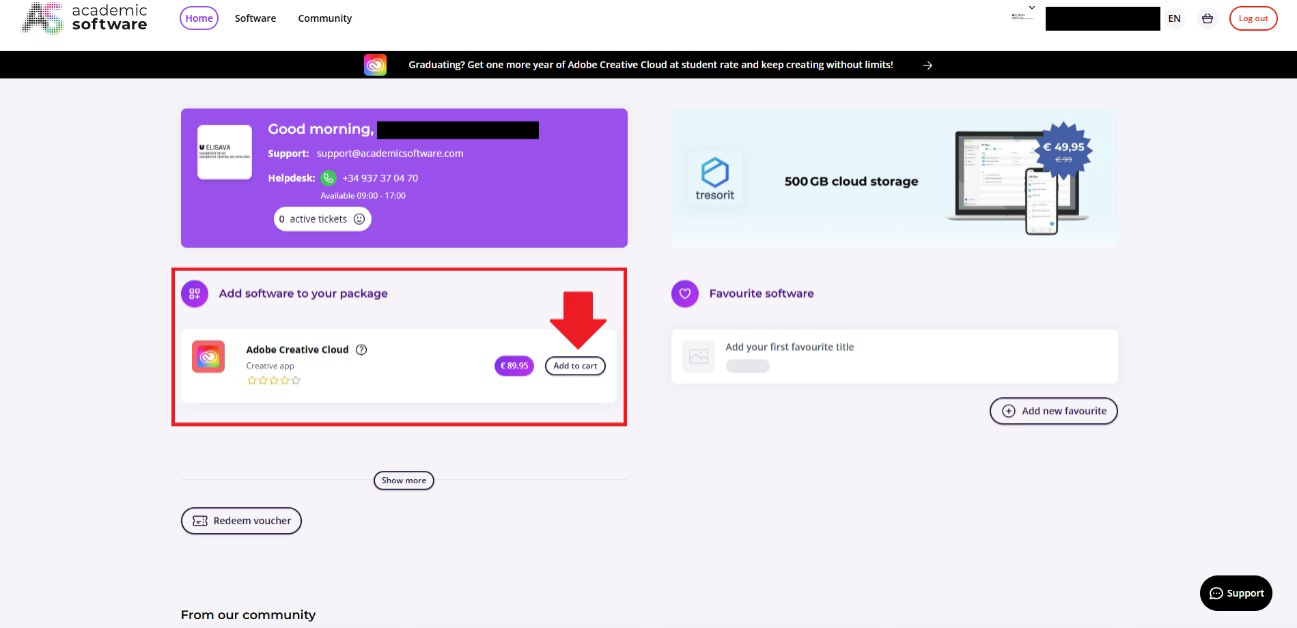
- On the main page of Academics Software, you will see the option to add the Adobe Creative Cloud suite. Add it to your shopping cart.
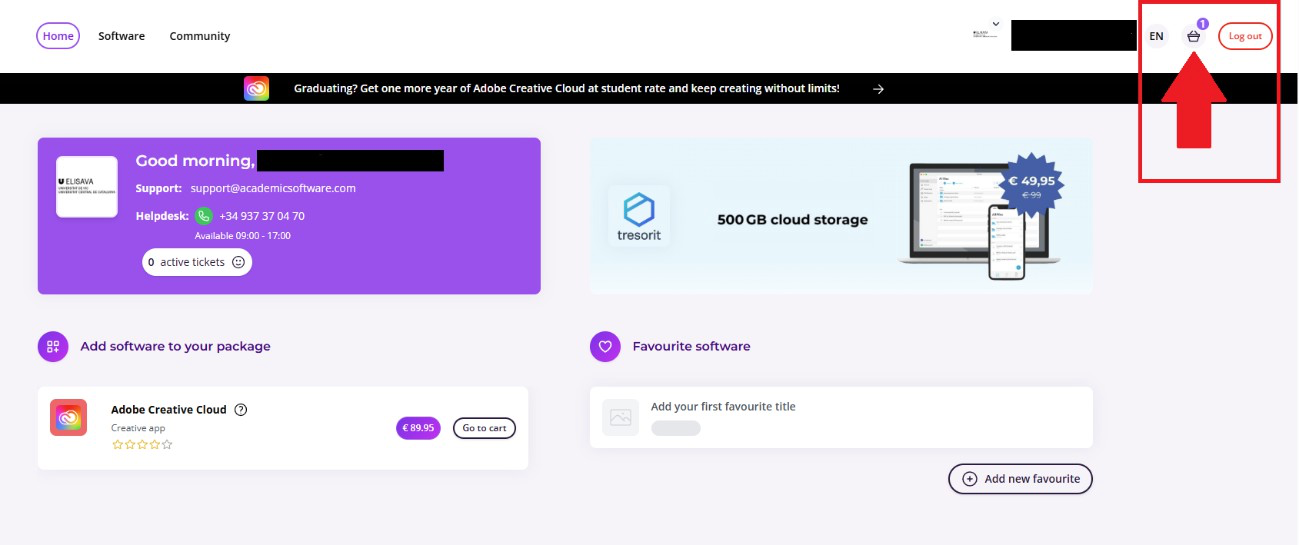
- Once added, go to the shopping cart, located in the upper right corner of the screen.
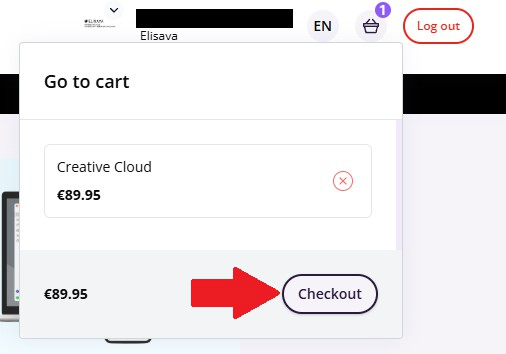
- In the shopping cart, you must confirm the payment. Check that the student discount is being applied correctly before proceeding.
- Accept the terms and conditions of purchase on Academics Software by ticking the corresponding checkbox.
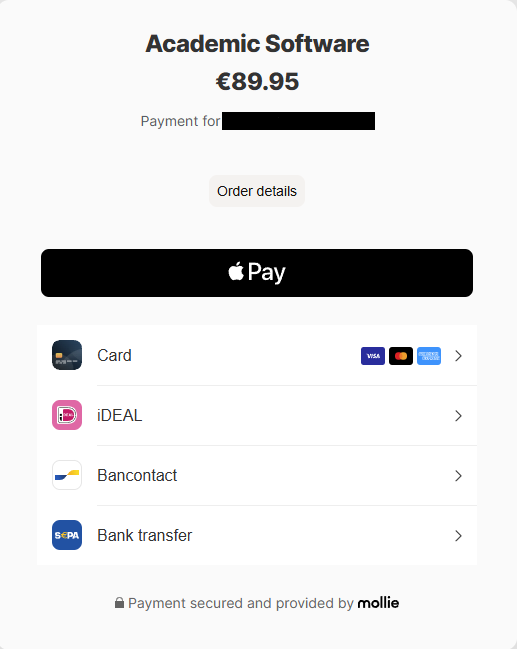
- After ticking the checkbox, the system allows you to continue and choose your payment method.
- Select the payment platform you prefer to complete the purchase and finish the process as you would with any other online payment.


Once you have completed the purchase and activation process, you will be able to download and install the Adobe Creative Cloud applications on your computer and sign in with the account linked to your institutional email address. This gives you access to all features throughout the academic year.
Was this article helpful?
That’s Great!
Thank you for your feedback
Sorry! We couldn't be helpful
Thank you for your feedback
Feedback sent
We appreciate your effort and will try to fix the article