Troubleshooting Video Conference Room Access
If you're having trouble joining a live session, this guide will help you identify and solve the two most common access issues with our video conference rooms. First, you'll need to identify which of the following situations best describes your problem.
1. “Error Code: 1011” appears, or you can't enter the Video Conference Room
If you encounter an error message that says “Error Code: 1011” when trying to join the session, the page won't load, or you simply can't get past the access screen, it's very likely that the session has not started yet.
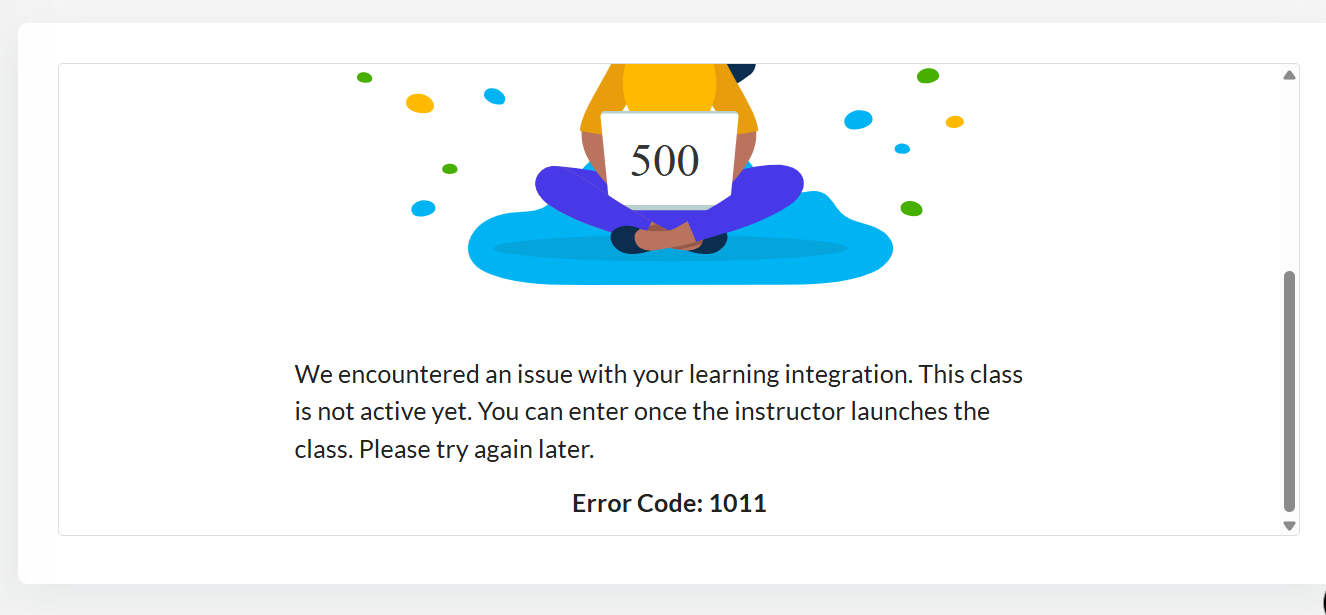
The Video Conference Room has probably not yet been started by your teacher. In our system, the virtual room is created and activated only when the teacher accesses it for the first time.
What can you do?
- Wait a few minutes and refresh the page. You might be trying to access it before the teacher has started the session.
- Check the Course Schedule and make sure the session is scheduled for the correct time.
- If you have waited several minutes after the start time and the issue persists, contact your teacher to confirm if the session has already begun.
2. You have entered the Video Conference Room, but you see a black screen
If you have successfully accessed the room and the page has loaded, but the screen is completely black, you can't see your teacher's or classmates' cameras, but you can hear them. Your user profile has most likely not been “verified” correctly by the teacher. Although you are “inside” the room, the system has not granted you the necessary permissions to receive video and audio.
What can you do?
- Check your browser permissions. Make sure you have granted your browser permission to use your camera and microphone.
- Refresh the page. Press F5 (or CMD + R on Mac) to force the system to try to verify you again. You can also try to leave and re-enter. Close the video conference tab and use the link to access it again.
- Try another browser. If the problem continues, make sure you are trying to access from a compatible browser (Google Chrome is the most suitable).
- Ask the teacher to verify you. The teacher has the ability to verify users from the participant tool.
If you have followed all the steps in this guide and still cannot access or see your class, we recommend some additional actions. Check that your internet connection is stable or restart your computer to resolve any temporary issues.
If none of the above works, please contact our Support team at soporte@weareshifta.com.
Was this article helpful?
That’s Great!
Thank you for your feedback
Sorry! We couldn't be helpful
Thank you for your feedback
Feedback sent
We appreciate your effort and will try to fix the article