Guide to Forwarding Outlook Emails to a Personal Account
Your SHIFTA by Elisava Virtual Campus user is linked to your institutional email account (@elisava.net) and cannot be changed. If you wish to receive all notifications and electronic notices from the Virtual Campus in a single inbox, you can configure your institutional account to automatically forward all messages you receive to your personal email address. In this guide, we show you how to do it step-by-step.
Steps to Follow
- Log in to Outlook: Access the web version of Outlook and enter your institutional credentials.
- Access Settings: Click on the gear icon (⚙️) in the upper right corner.
- View all Outlook settings: In the menu that appears, select this option.
- Go to the Forwarding section: In the new window, go to "Mail" and then to the "Forwarding" subsection.
- Enable forwarding: Check the "Enable forwarding" box and enter the personal email address to which you want to forward the messages.
- Save the changes: To finish, click the "Save" button.
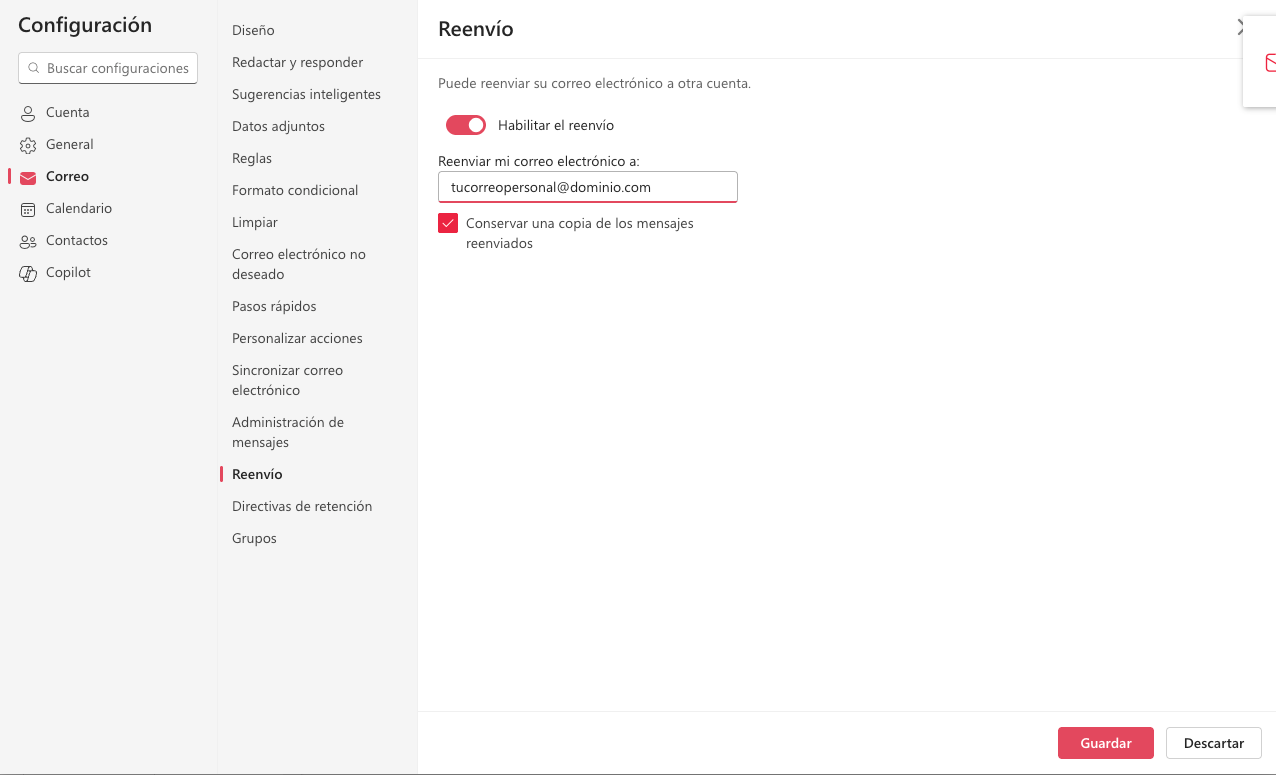
Important note: We recommend checking the box "Keep a copy of forwarded messages". This way, you will keep a backup copy of all emails in your institutional Outlook account.
And that's it! From this moment on, all new emails that arrive in your institutional account will be automatically redirected to the address you have specified.
Was this article helpful?
That’s Great!
Thank you for your feedback
Sorry! We couldn't be helpful
Thank you for your feedback
Feedback sent
We appreciate your effort and will try to fix the article